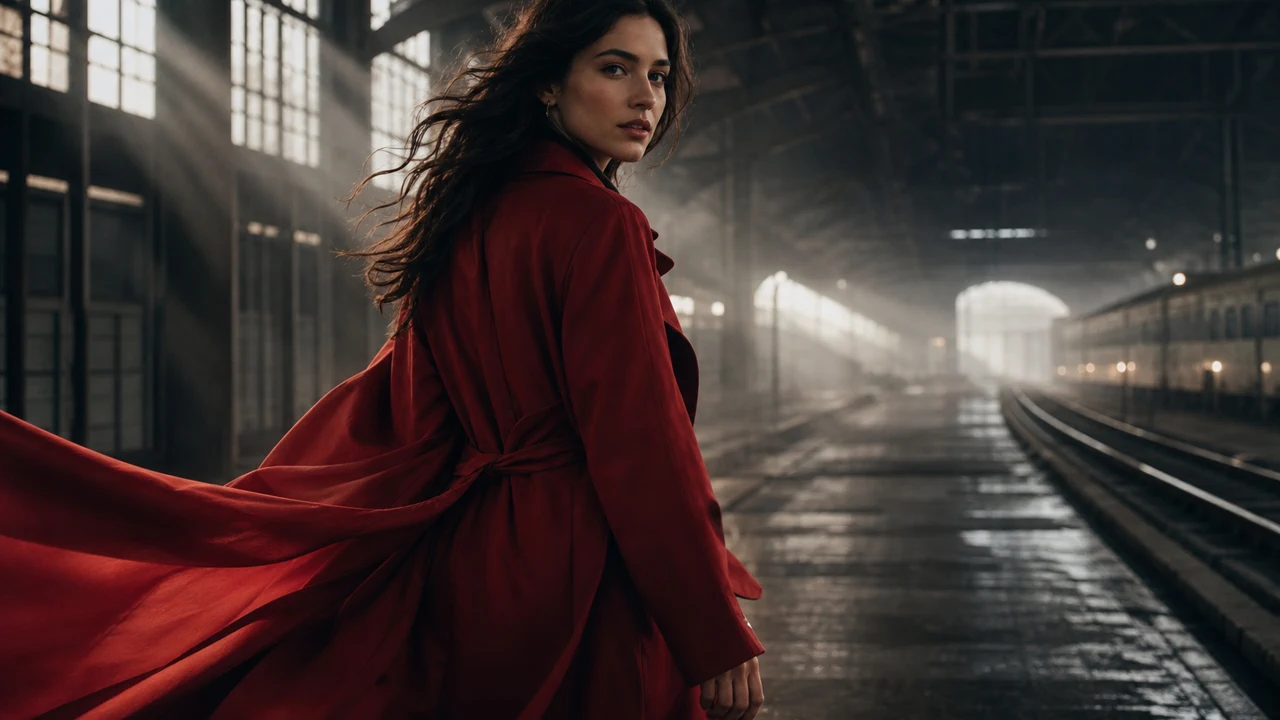
Concept preview
Kling 3.0
Advanced Kling model with single-shot prompt generation, first/last-frame input, and pro/std render modes.
Text to VideoFrames to VideoSound effectsStd / Pro
Use Kling 3.0Kling 3.0, 2.6, 2.5 Turbo Pro, and 2.1
Kling AI Video Generator
Kling fits motion-heavy clips, image animation, camera-led scenes, and sound-enabled tests when the selected model exposes them. Use the generator above as the source of truth for supported inputs and settings.
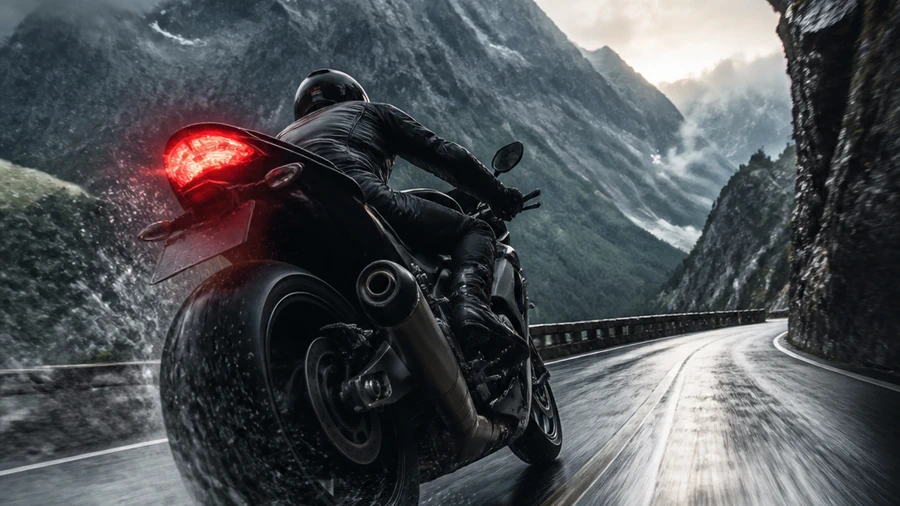
Start from a prompt when you want motion, camera direction, or scene development.
Open tool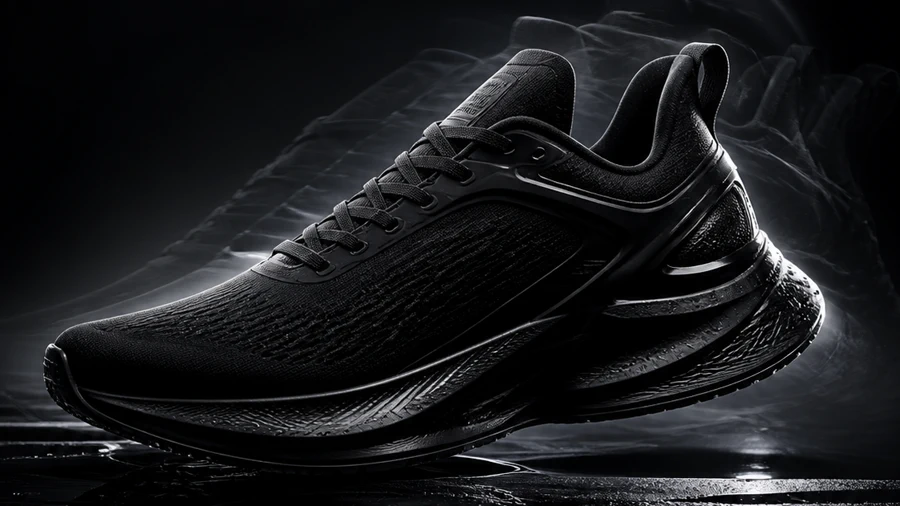
Animate an uploaded image when the source composition should stay recognizable.
Open tool
Use audio only when the selected Kling model exposes it in the generator.
Open toolChoose the right Kling model
Different Kling versions balance motion quality, prompt control, sound support, and credit cost differently. Use the live generator settings as the source of truth.
Advanced Kling model with single-shot prompt generation, first/last-frame input, and pro/std render modes.
Kling 2.6 with separate prompt-driven and image-driven generation modes.

Turbo Pro generation for text and image workflows.
Kling 2.1 Master with text and image generation modes.
Kling 2.1 Pro image animation with optional first/last frames.
Kling 2.1 image animation with standard quality.
Input modes
Choose text-to-video when you want Kling to build a scene from an idea. Choose image-to-video when you already have the composition you want to animate.
Core capabilities
Kling is strongest when motion, camera direction, and consistency matter more than a generic prompt-to-clip demo.
Describe walking, turning, object movement, fabric motion, environmental changes, and scene action in time order.
Guide pushes, pulls, pans, tracking shots, orbit movement, and close-ups through the prompt when the model supports it.
Use a product image, portrait, illustration, or concept frame as the starting composition, then describe the motion you want to introduce.
Enable sound only on workflows where the selected Kling model exposes it in the live generator.
Model comparison
The model you choose changes the supported input modes, audio behavior, and available qualities. The generator above stays authoritative for live options.
Best when prompt quality and std/pro choices matter.
Best for prompt-led or image-led motion with audio support.
Balanced prompt and image workflows without extra claims.
Keep the exact selected version visible in the generator.
Kling 3.0 currently exposes std/pro quality choices and sound effects in the live generator, while other Kling models expose only the controls they actually support.
Use cases
Kling is useful for shots that need motion, camera control, or a more cinematic feel than a static image workflow can provide.
Product videos with controlled camera movement and reflections
Character motion, gestures, walking, and performance concepts
Cinematic establishing shots for storyboards and mood boards
Vertical social clips for Reels, Shorts, TikTok, and campaign testing
Action and movement tests for running, turning, and object interaction
Story and campaign concepts before a more expensive production pass
Render mode
Some Kling models expose Standard and Pro quality choices, while others do not. Use the live generator settings before creating the video.
Use Standard for quick tests and lower-cost iteration when the selected model supports it. Use Pro only when the selected Kling model exposes a higher-quality render choice and the result justifies the extra cost.
Render mode availability and behavior vary by model. Review the live controls in the generator before creating the video.
Workflow
Keep the workflow simple so the result stays comparable across model tests.
Select a supported Kling model, then choose Text to Video or Image to Video based on how you want to start.
Write what moves, how the camera behaves, what the environment does, and which details must remain consistent.
Choose the available ratio, duration, render mode, and sound option, then generate and review the saved history.
Prompt guide
A useful Kling prompt describes the subject, action, motion sequence, environment, camera movement, lighting, sound, consistency, and visual style.
Name the subject, setting, camera movement, lighting, style, and ending action.
For image-to-video, describe the motion you want instead of repeating what is already visible.
For commercial clips, mention framing, product focus, pacing, and whether the shot should feel realistic or stylized.
Keep test prompts short enough to compare models, then add detail once the direction is working.
Iteration
Simple prompt changes usually help more than trying to force unsupported settings.
Describe one clear action before adding multiple events.
Write motion in time order so the model has a clearer sequence.
Separate subject motion from camera motion.
Protect important image details such as the face, product shape, or label.
Test with the live model and only increase cost when the direction is working.
FAQ
Answers about Kling versions, supported inputs, sound, and commercial usage.
Kling is a family of AI video and creative models for text-to-video and image-to-video workflows. On VizRise, the generator exposes the Kling models that are currently available in the workspace.
VizRise currently exposes Kling 3.0, Kling 2.6, Kling 2.5 Turbo Pro, and Kling 2.1 Standard, Pro, and Master in the Kling workspace.
Kling 3.0 is the newest family shown in this workspace and supports text-to-video, frames-to-video, and std/pro render modes in the current integration. Earlier Kling models expose different mixes of prompt, image, and frame workflows.
Yes. Kling 3.0, Kling 2.6, and Kling 2.5 Turbo Pro expose prompt-led generation in VizRise, while Kling 2.1 Master also supports text-to-video.
Yes. Kling 2.6 supports image-to-video, Kling 2.1 Standard supports image-to-video, and Kling 2.1 Pro and Master expose frame or image workflows depending on the selected model.
Some Kling models and workflows support generated sound effects. In VizRise, sound appears only when the selected model and workflow expose it in the generator.
Standard and Pro are model-dependent render choices. On VizRise, Kling 3.0 exposes std and pro qualities, while other Kling models may not show render modes at all.
Choose the model that matches your input type, motion requirements, sound needs, and credit budget. Use the live generator controls as the source of truth for what is actually supported.
Commercial use depends on your rights to the prompt, source images, reference materials, output, and the relevant platform terms. Review VizRise Terms before using a generated result commercially.
Related tools
Keep using Kling when it fits the shot, or move to a focused workflow when the input type is already decided.
Compare Kling with Veo, Seedance, Wan AI, and other model families in the main workspace.
Explore Seedance models for reference-driven creation, narrative scenes, and supported audio-visual workflows.
Use Wan AI when you want another model family for prompt-led and image-led video tests.
Try Veo 3.1 when you want a separate high-fidelity video model option in the same VizRise workspace.
Animate a single image in a dedicated workflow when the source frame is already chosen.
Transform or restyle source footage when the motion reference should come from video.
Use the dedicated motion-control workflow when you want source movement to guide the result.
Final CTA
Choose a supported Kling model, start with a prompt or image, configure the available motion, format, render, and sound settings, and generate your next video concept with VizRise.
New users receive 3 starter credits after logging in. Kling generation costs vary by model, duration, render mode, and settings and may require additional credits.