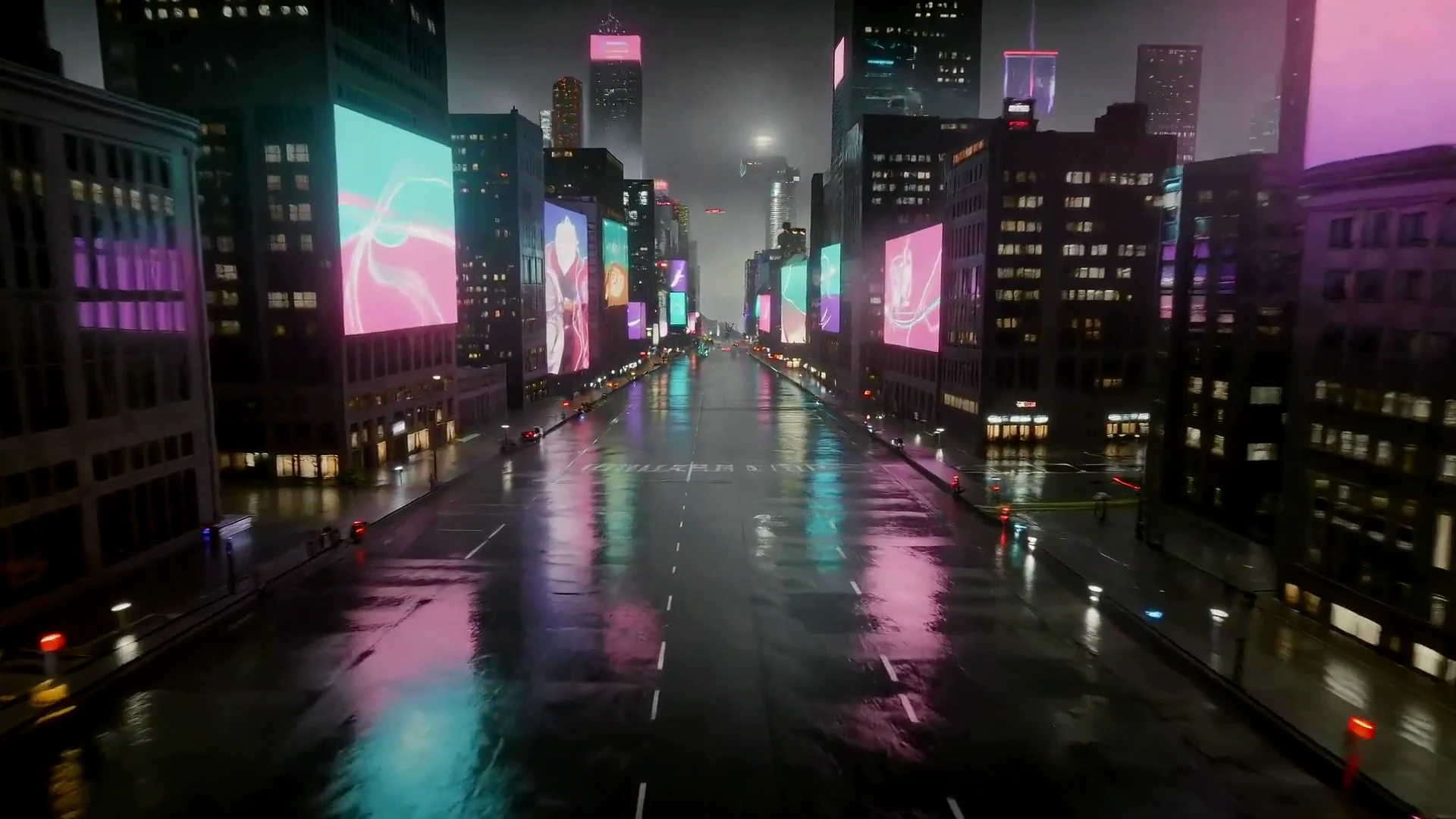
Cinematic neon restyle
Keep the camera direction from the source and change the scene into a polished night-city video.
Upload at least 1 video file to continue.
Video-to-video is useful when a text prompt alone is too loose. The uploaded footage gives the model motion, framing, and timing to follow.
Use source footage to guide motion while changing style, atmosphere, lighting, and creative direction.
Cinematic neon restyle
Keep the camera direction from the source and change the scene into a polished night-city video.
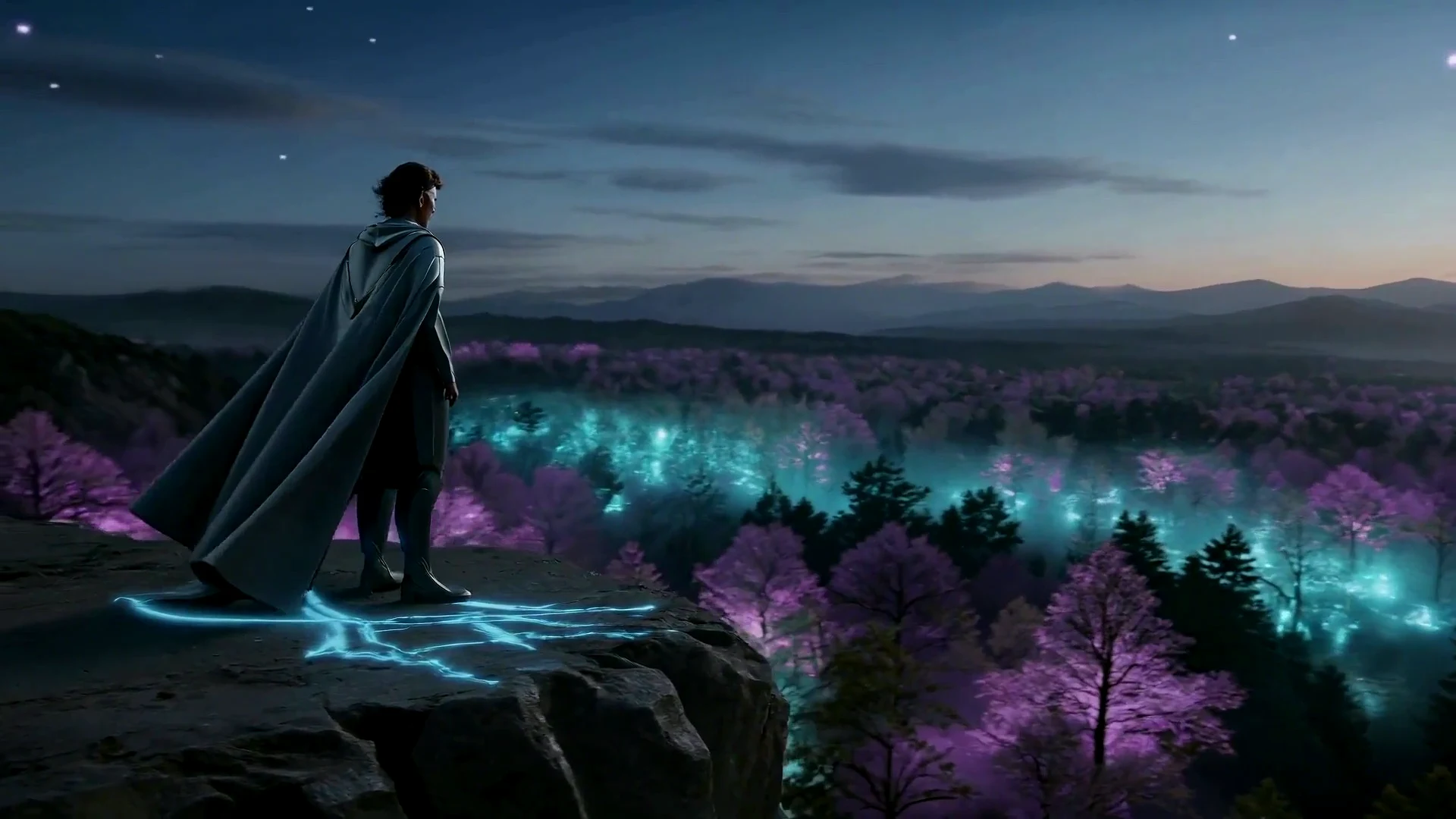
Nature fantasy remix
Use the uploaded video as a motion reference while shifting the mood into a softer cinematic world.
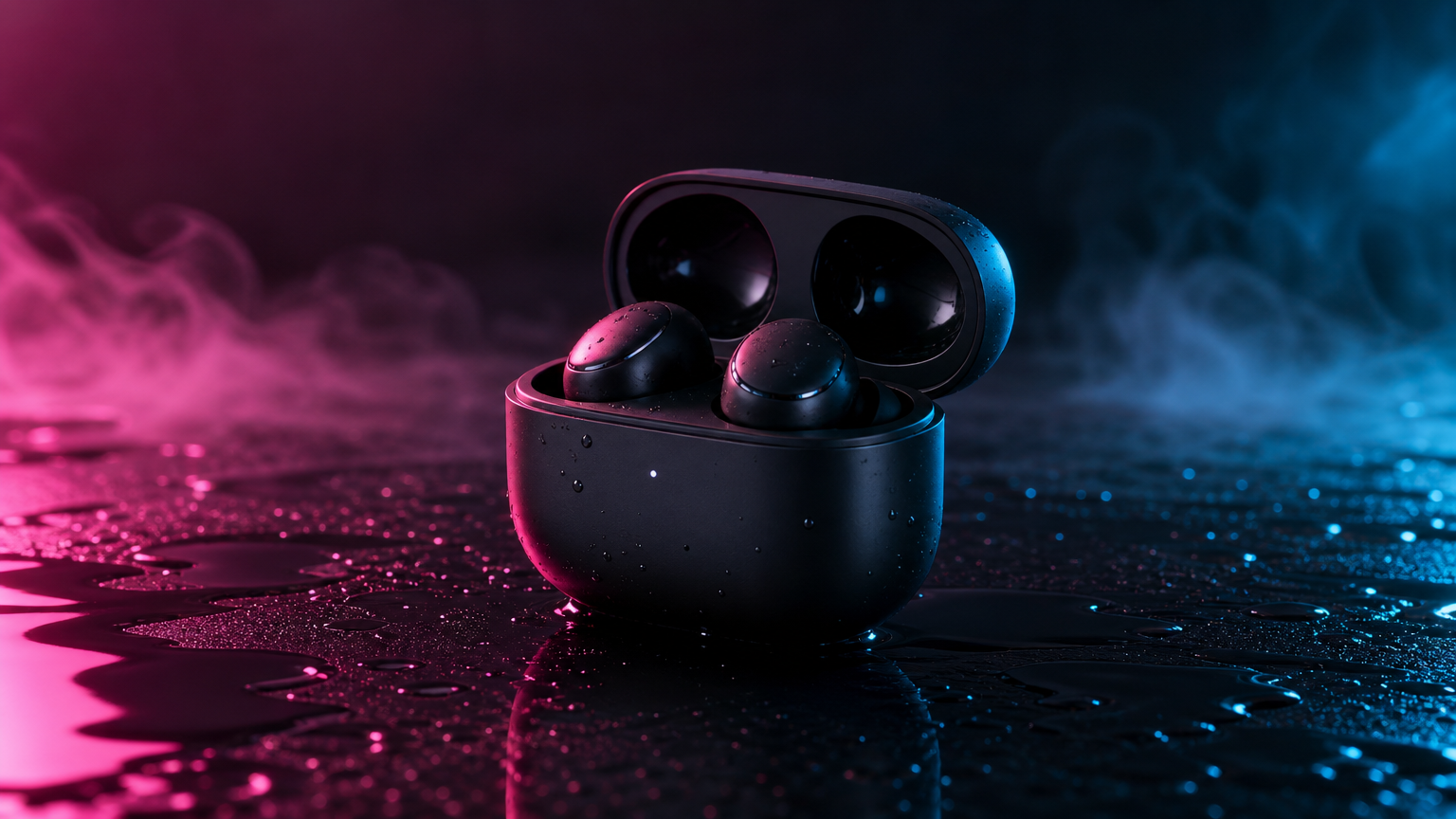
Product clip variation
Restyle product footage or creator clips into a cleaner commercial visual direction.
Upload source footage first, then write how the new video should look and feel.
Upload a clip, describe the new look, and generate a restyled AI video with a model that supports video-to-video input.
Video to video|Source video + prompt|Wan 2.6 Flash|Restyle | Remix | AI edits
Upload the source clip, describe the transformation, choose a supported model, and generate the new video.
Start with the clip you want to transform. The page only accepts video input because this workflow is built for video-to-video generation.
Tell the AI what should change and what should remain. A useful prompt names the style, scene, lighting, mood, camera feel, and preserved motion.
Select Wan 2.6 Flash for a practical starting point or Wan 2.6 for the higher-end option, then pick duration, resolution, and audio when supported.
Create the transformed clip, check whether the result preserved the right motion, then refine the prompt if the style needs a sharper direction.
Video-to-video is strongest when the source clip contains the motion or composition you want to preserve.
Built for video upload, prompt-guided transformation, model-aware controls, and practical creator workflows.
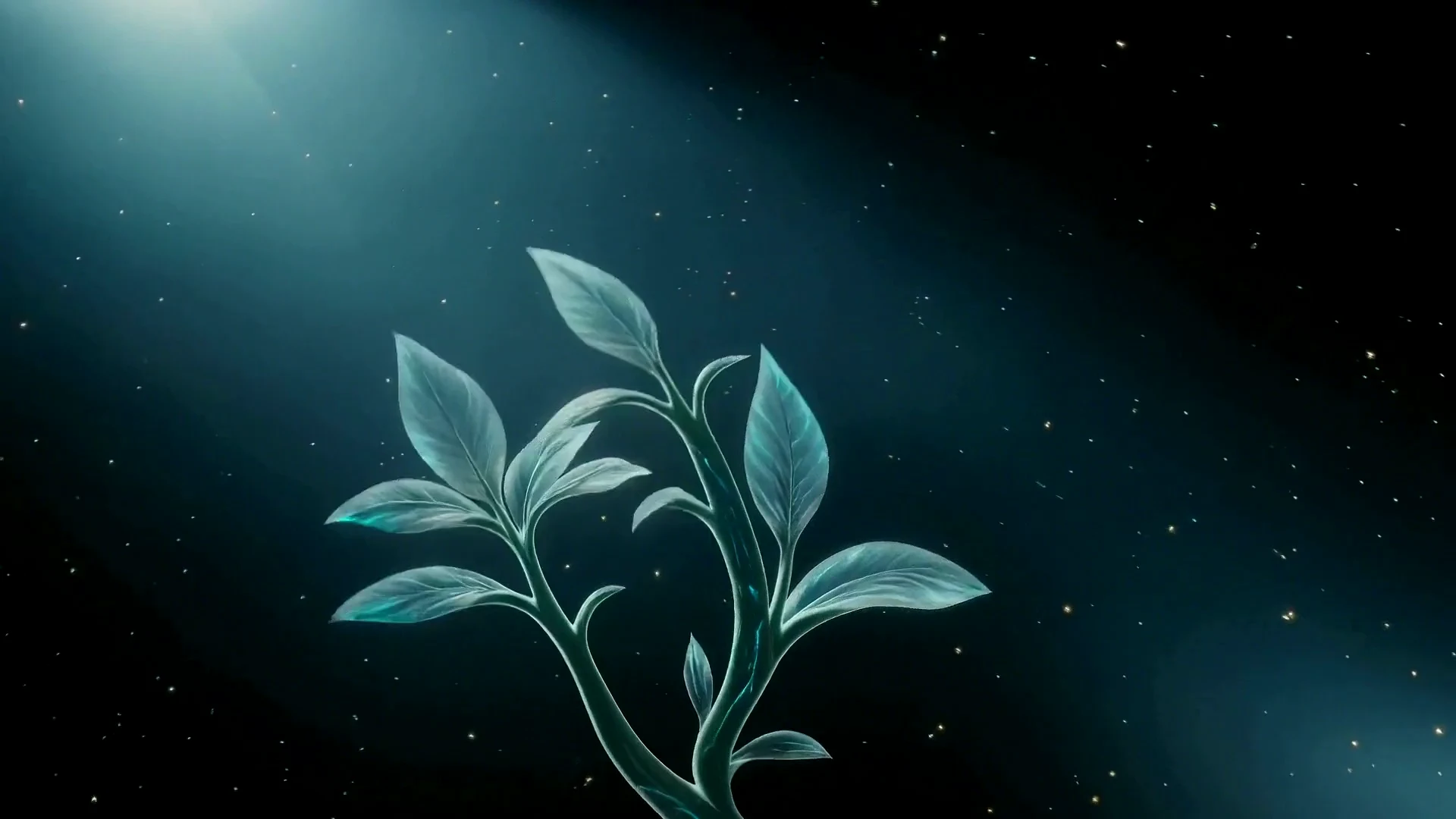
Restyle footage, create ad variations, remix creator clips, test cinematic looks, and make atmospheric loop backgrounds.
Change the look of a clip while keeping the original motion or structure as the base.
Take one product or creator clip and generate different campaign moods, lighting styles, or visual directions.
Restyle short clips for social posts, music visuals, intros, transitions, and experimental edits.
Use rough footage or simple motion references to test more cinematic scenes before production.
Transform source footage into atmospheric website, event, or product-background loops.
Try multiple lighting, color, and genre directions from the same source video.
Tell the model what should remain consistent and what should change so the output follows the source footage more intelligently.
Video-to-video works best when the prompt says both sides of the edit: keep the source subject, motion, timing, or camera path, then change the style, setting, lighting, or mood. If you only describe the new look, the model has less guidance about what must remain consistent.
Answers about source video upload, supported models, multiple video inputs, prompts, credits, and workflow limits.
Video to video AI takes an uploaded source video and generates a new video from it using your prompt as the transformation direction.
Yes. This page is focused on video-to-video generation, so a source video is required before generation.
This page exposes Wan 2.6 Flash and Wan 2.6 because those are the enabled models in this workspace with true video-to-video support.
Yes, the supported Wan video-to-video capabilities allow up to three source videos. The page will only send the amount the selected model supports.
Write what to keep and what to change. For example: preserve the subject motion and camera path, but turn the clip into a moody neon city scene with cinematic lighting.
Video-to-video is better for whole-clip transformation than exact frame-level editing. For precise manual edits, a dedicated editor may still be needed.
Accepted jobs deduct credits, and failed provider jobs are refunded by the existing VizRise generation flow.
No. Image upload modes are intentionally hidden here so users only see the video-to-video workflow.
Upload a clip, describe the new look, and generate a restyled AI video with a model that supports video-to-video input.