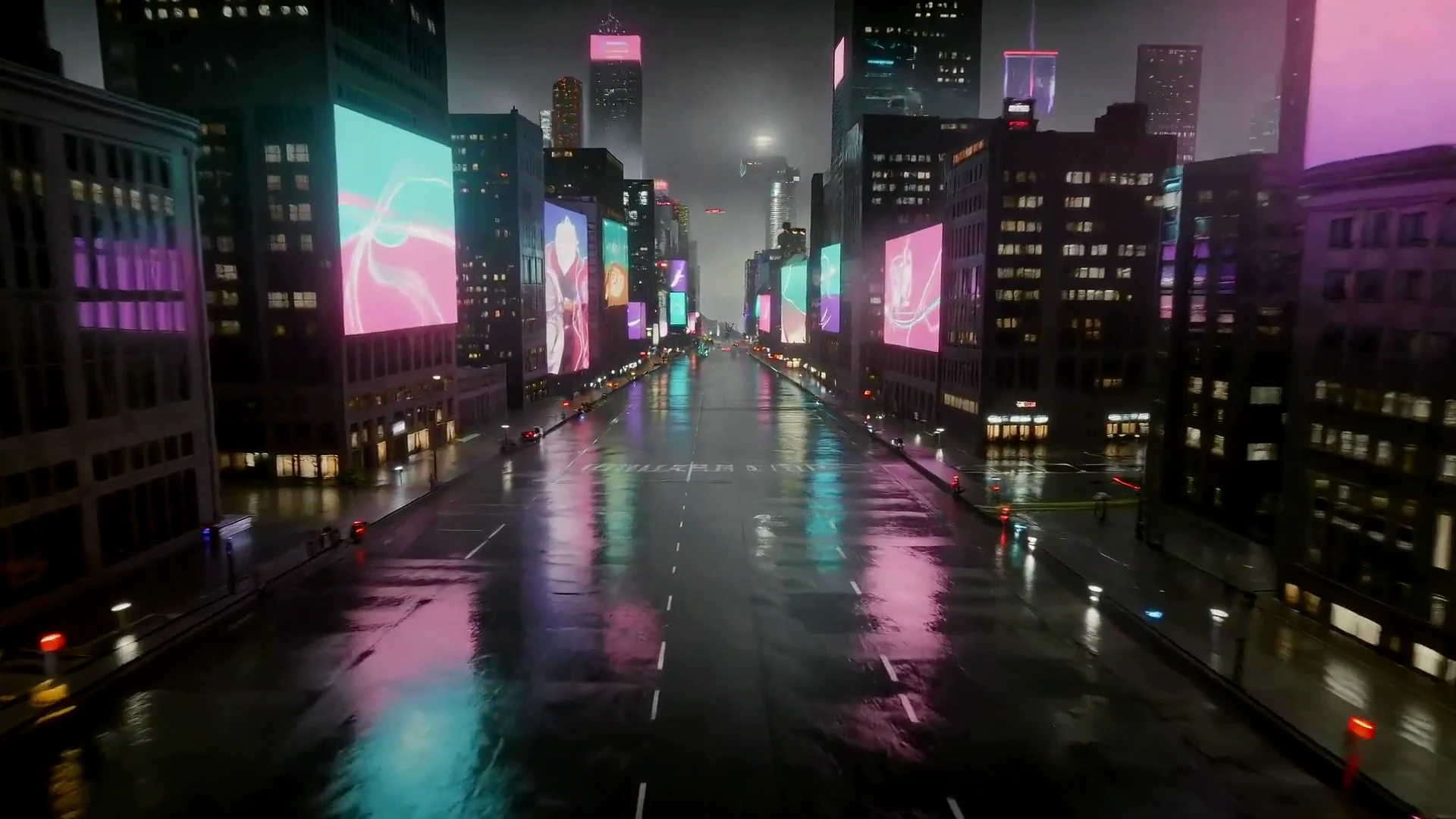
Cinematic prompt video
A text prompt can define the location, camera movement, mood, and lighting for a polished cinematic scene.
The workflow is built for users who start with an idea, not an uploaded image. It keeps the form focused on prompt quality, motion, camera direction, and output format.
Use prompt-only generation for cinematic scenes, product ads, character moments, and atmospheric video loops.
Cinematic prompt video
A text prompt can define the location, camera movement, mood, and lighting for a polished cinematic scene.
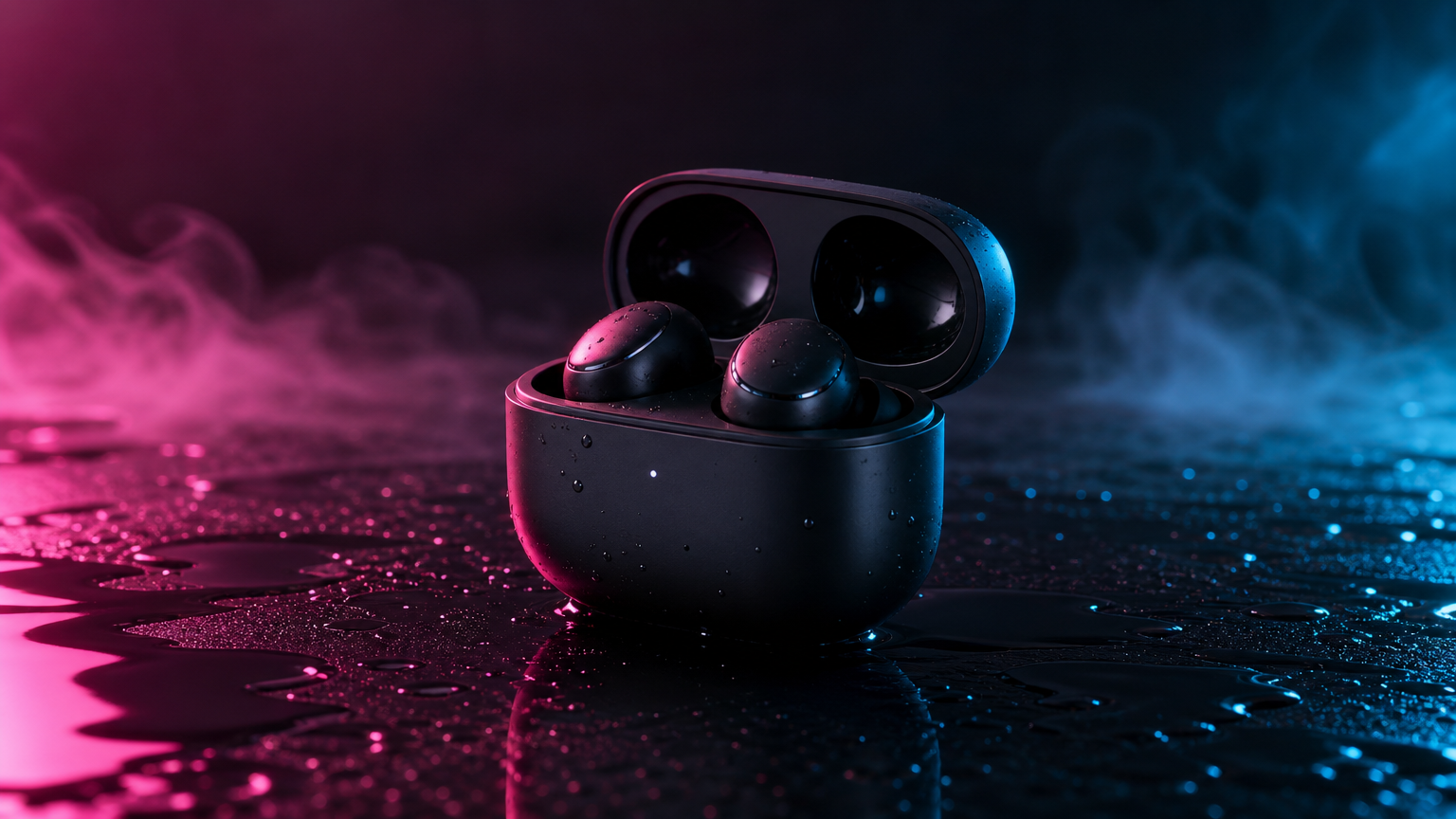
Product ad from text
Describe the product, materials, light movement, and commercial style to create a short ad-ready visual.

Cute character moment
Text-to-video works well for simple story beats where the motion and expression are the whole idea.
Describe the subject, action, camera movement, lighting, and mood in natural language.
Write a prompt, choose a model and ratio, then generate a video without uploading a reference image.
Text to video|Prompt only|Seedance 2.0 Fast|Social clips | Ads | Story shots
Write the prompt, choose the video model and format, generate the clip, then refine the result if needed.
Start with a natural prompt. Include who or what is in the scene, what happens, where it happens, and how the camera should move.
Pick a video model, aspect ratio, duration, and quality. The page stays in text-to-video mode so the controls remain simple.
Create the clip, check the motion and framing, then refine the prompt if you need a stronger shot.
Generated videos are saved to your history, ready for download, reuse, or later creative work.
Start from text for quick ideas, then use image or frame tools when you need tighter visual control.
Built for prompt-only creation, model choice, ratio control, and practical creator workflows.

Create social clips, product ads, story beats, website hero videos, music visuals, and fast concept tests.
Create short vertical or square video ideas for TikTok, Instagram, YouTube Shorts, and creator posts.
Generate product-style motion concepts, studio lighting shots, hero clips, and visual ad drafts from a written brief.
Turn character moments, mood boards, or script beats into quick moving shots before producing a full sequence.
Create atmospheric background clips for landing pages, SaaS visuals, portfolios, and campaign pages.
Describe a mood, rhythm, environment, and camera motion to create looping visuals for tracks and promos.
Try multiple versions of a scene quickly before committing to a more expensive model or longer render.
A clear prompt gives the model enough context to produce better motion, framing, lighting, and style.
Text-to-video quality depends heavily on prompt clarity. Mention the subject, action, scene, camera motion, lighting, style, and whether the video should feel realistic, cinematic, cute, surreal, commercial, or documentary. Short vague prompts can still work, but they usually need more retries.
Answers about prompt-only generation, model choice, credits, ratios, audio, and writing stronger prompts.
Text to video means you describe a scene in words and the AI generates a moving video from that prompt without needing an uploaded image.
Yes. This page is designed for prompt-only generation. Image upload modes are intentionally hidden here.
You can view the tool page for free. New users get 3 free credits to try generation, then future renders use your VizRise credit balance.
Seedance 2.0 Fast is the default because it is a practical starting point for prompt videos. You can switch to Veo, Seedance 2.0, Wan, Kling, or Grok when you want a different motion style or quality tradeoff.
Write the subject, action, setting, camera motion, lighting, mood, style, and any platform need. For example: a premium product shot, slow camera orbit, glossy black surface, cyan rim light, clean commercial style.
Yes, when the selected model supports vertical ratios. The UI adapts to the real ratios supported by the selected model.
Accepted jobs deduct credits, and failed provider jobs are refunded by the existing VizRise generation flow.
Some supported models include native audio options. If the selected model supports audio, the page exposes that option in the model controls.
Write a prompt, choose a model and ratio, then generate a video without uploading a reference image.