

Portrait background removal
Remove the room background from a portrait while preserving hair, face, sweater texture, and soft edges.
Upload at least 1 image to continue.
This workflow uses a background removal model instead of a generative edit prompt, so faces, products, pets, and object details stay closer to the original photo.
Each example starts with a normal photo and shows the subject cut out on a PNG-style checkerboard.
Portrait background removal
Remove the room background from a portrait while preserving hair, face, sweater texture, and soft edges.
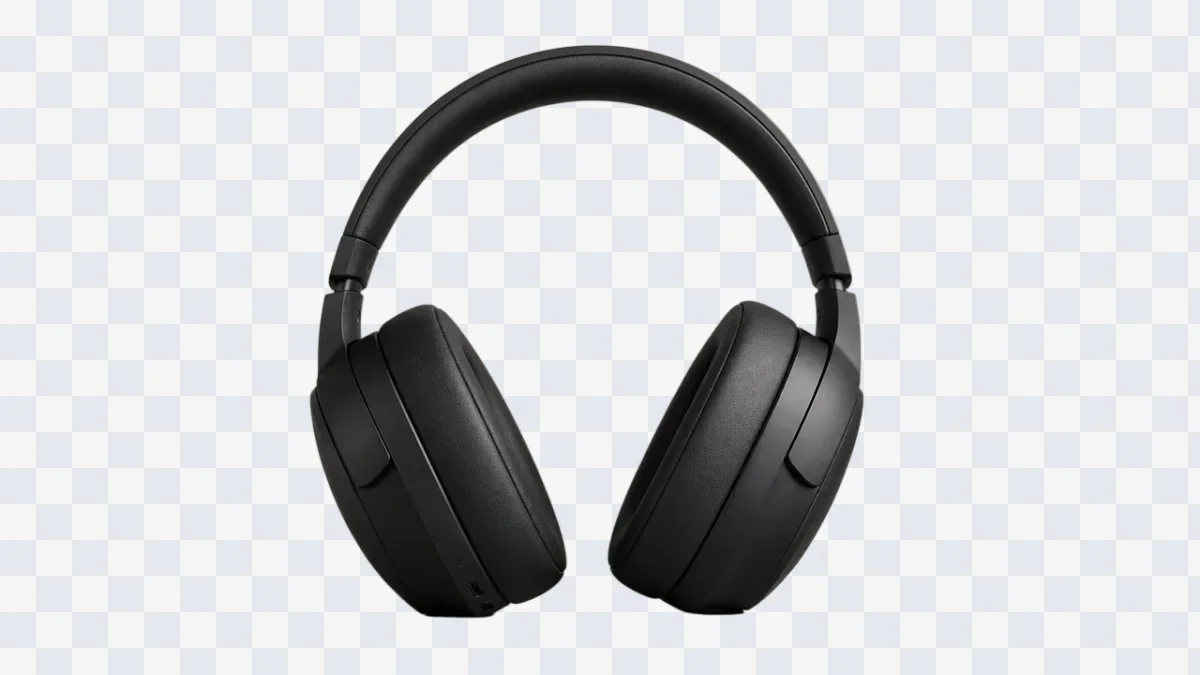
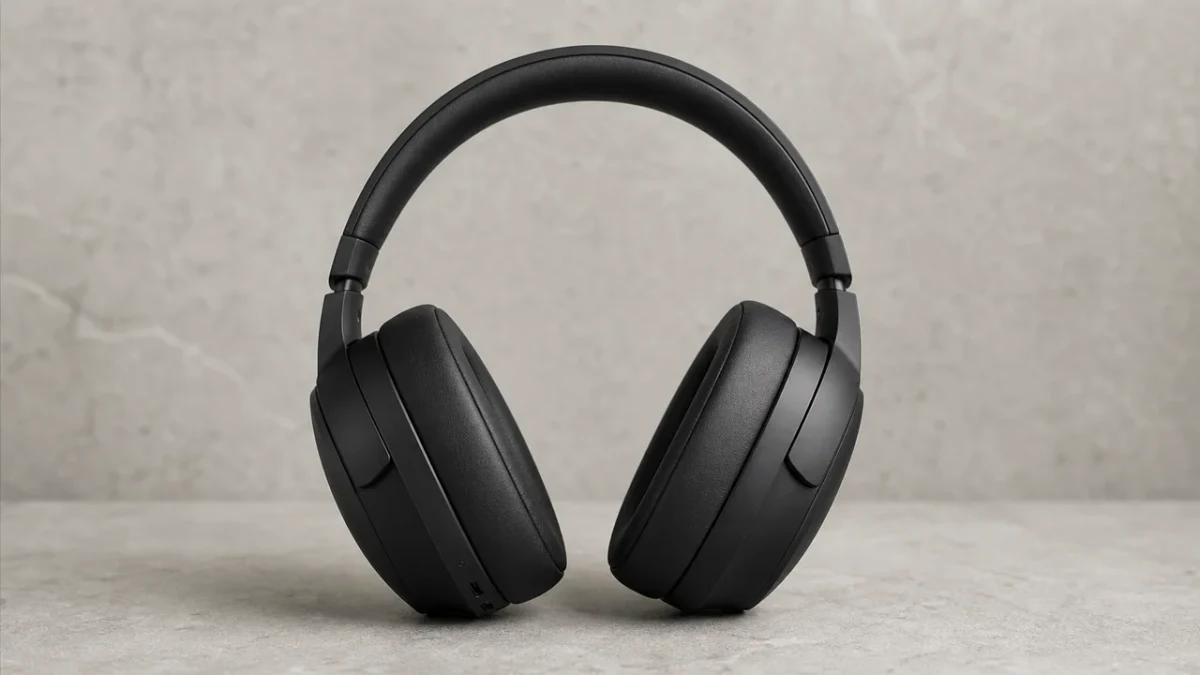
Product background removal
Remove the tabletop and wall from a product photo while keeping the black headphone shape clean.
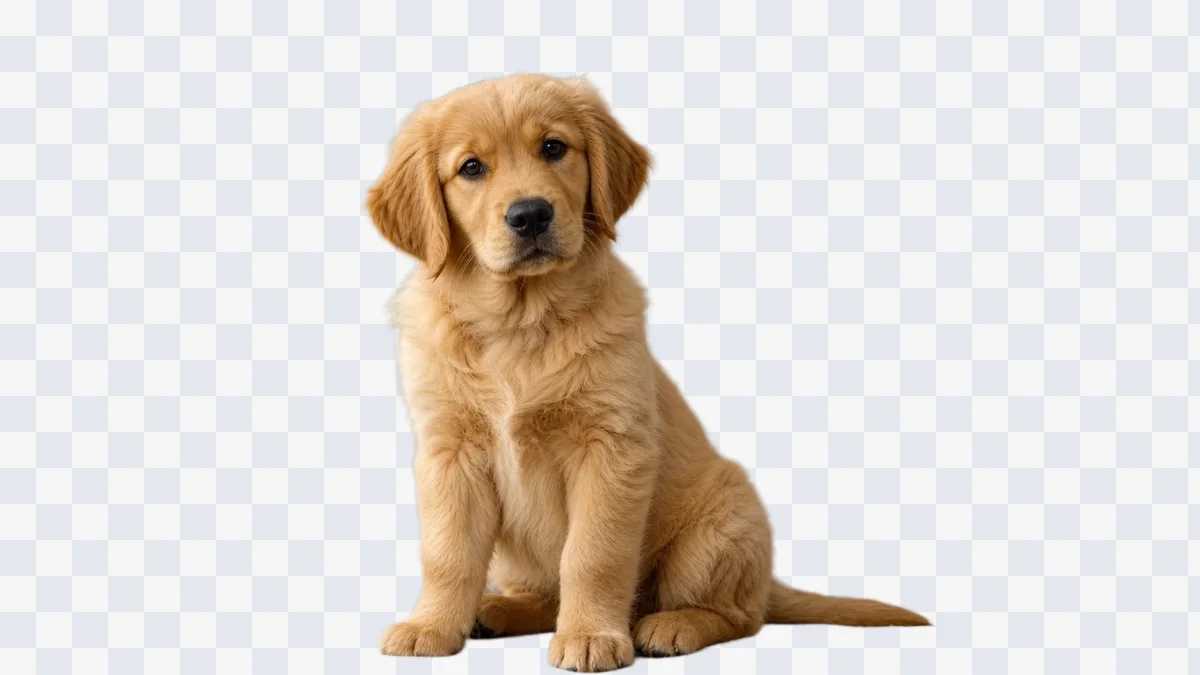
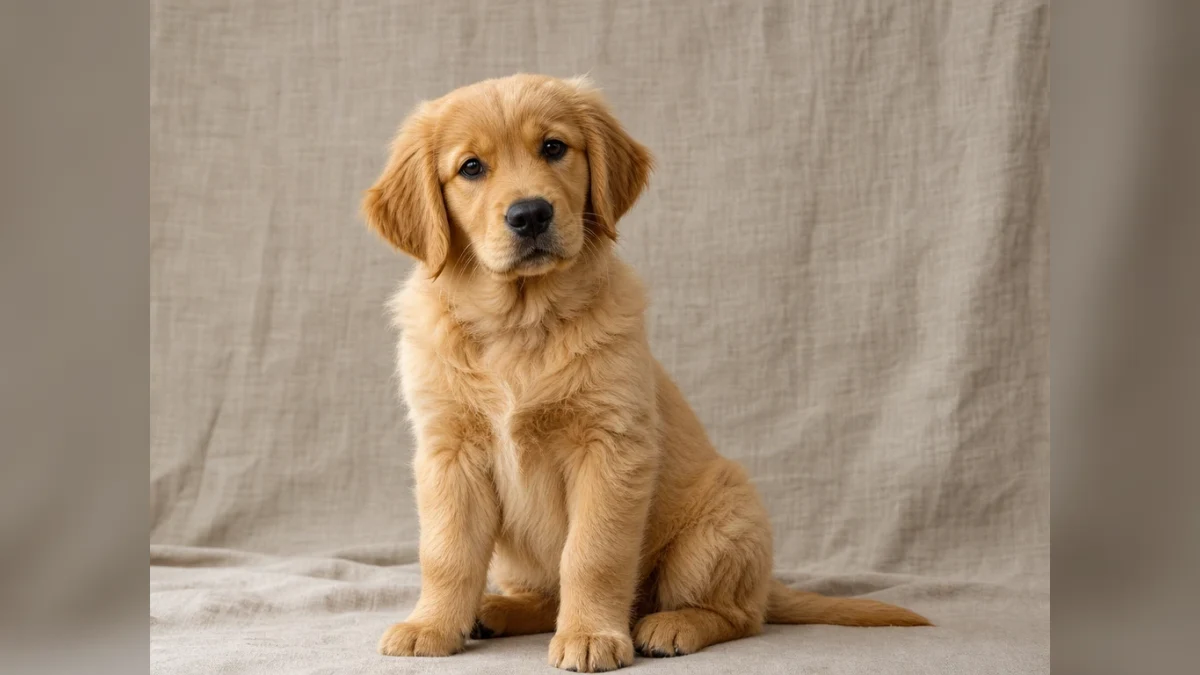
Pet background removal
Remove the fabric backdrop from a pet photo while keeping fur detail, paws, and natural outline.
Upload one JPG, PNG, or WebP image
Upload one photo and create a transparent PNG-style cutout for products, portraits, pets, thumbnails, or design work.
Background remover|Image cutout|1 image|Portraits, products, pets, objects
Upload an image, remove the background, and reuse the subject in your creative workflow.
Choose a JPG, PNG, or WebP image with a clear subject. Portraits, products, pets, and simple object photos work best.
VizRise sends the image to a dedicated background removal model, so the subject is cut out instead of redrawn.
The preview uses a checkerboard to show the cutout clearly. Use the output in thumbnails, ads, product visuals, or social content.
Use VizRise for image generation, text cleanup, watermark cleanup, reference blending, photo-to-sketch conversion, and background removal.
Built for subject preservation, transparent cutout previews, and practical image cleanup workflows.
Create product cutouts, portrait assets, pet images, object cutouts, and thumbnail-ready visuals.
Remove a product background before placing the subject into ads, banners, product pages, comparison graphics, or marketplace listings.
Cut out a person from a portrait so the subject can be reused on YouTube thumbnails, course covers, social posts, or profile visuals.
Turn pet photos, props, craft objects, and small studio shots into reusable cutout-style assets.
Use an online background remover when you need a clean asset quickly and do not want to manually mask the subject.
Sharp images with clear separation between subject and background produce cleaner cutouts.
Background removal works best when the subject is sharp and visually different from the background. Hair, fur, glass, motion blur, and color spill can still need a second pass or manual cleanup.
Answers about transparent PNG-style results, free credits, image limits, subject preservation, and edge quality.
Upload one image and click Remove Background. VizRise uses Recraft Remove Background to cut out the subject and remove the original background.
You can view the page without logging in. New users can try the background remover with 3 free credits. After those credits are used, generation uses your normal VizRise credit balance.
The workflow is designed for transparent cutout-style results. The page preview uses a checkerboard so the removed background is easy to see.
Yes. This workflow is built around a dedicated cutout model, so it tries to preserve the original subject instead of redrawing a new person, pet, or product.
Use JPG, PNG, or WebP images under 5 MB with a clear subject, sharp edges, and a background that does not blend into the subject.
Yes. Product photos with clear object edges are one of the best use cases for this tool.
Upload one photo and create a transparent PNG-style cutout for products, portraits, pets, thumbnails, or design work.