

Product text cleanup
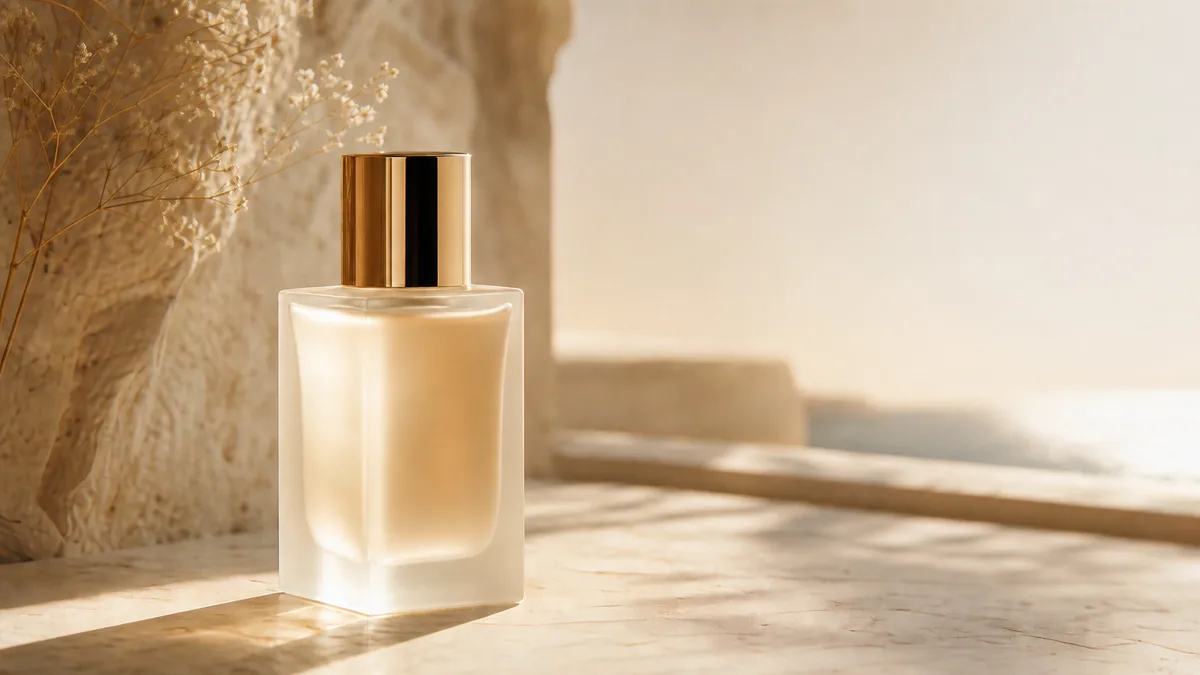
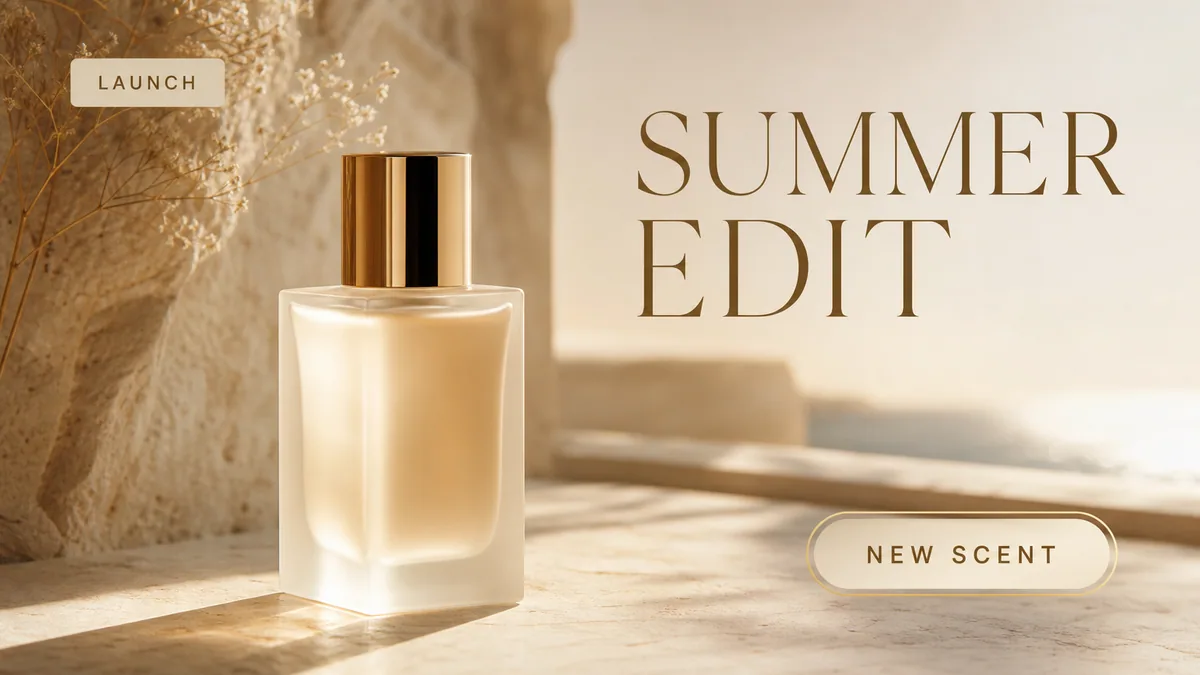
Remove promotional text from a product image while keeping the bottle, shadows, and studio lighting intact.
Upload at least 1 image to continue.
Use this AI text remover when text is baked into a flattened image and you do not want to clone, mask, or manually retouch the background.
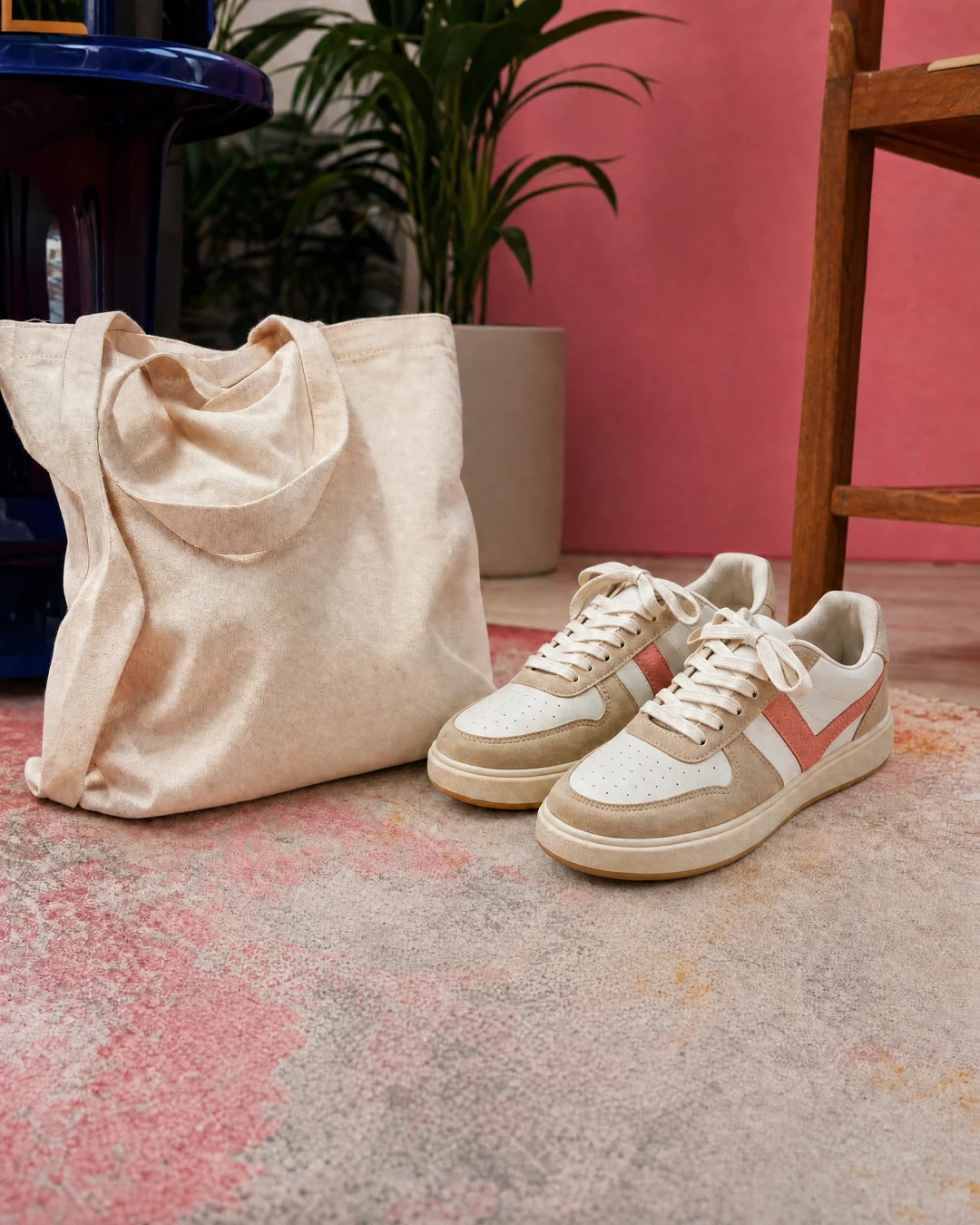
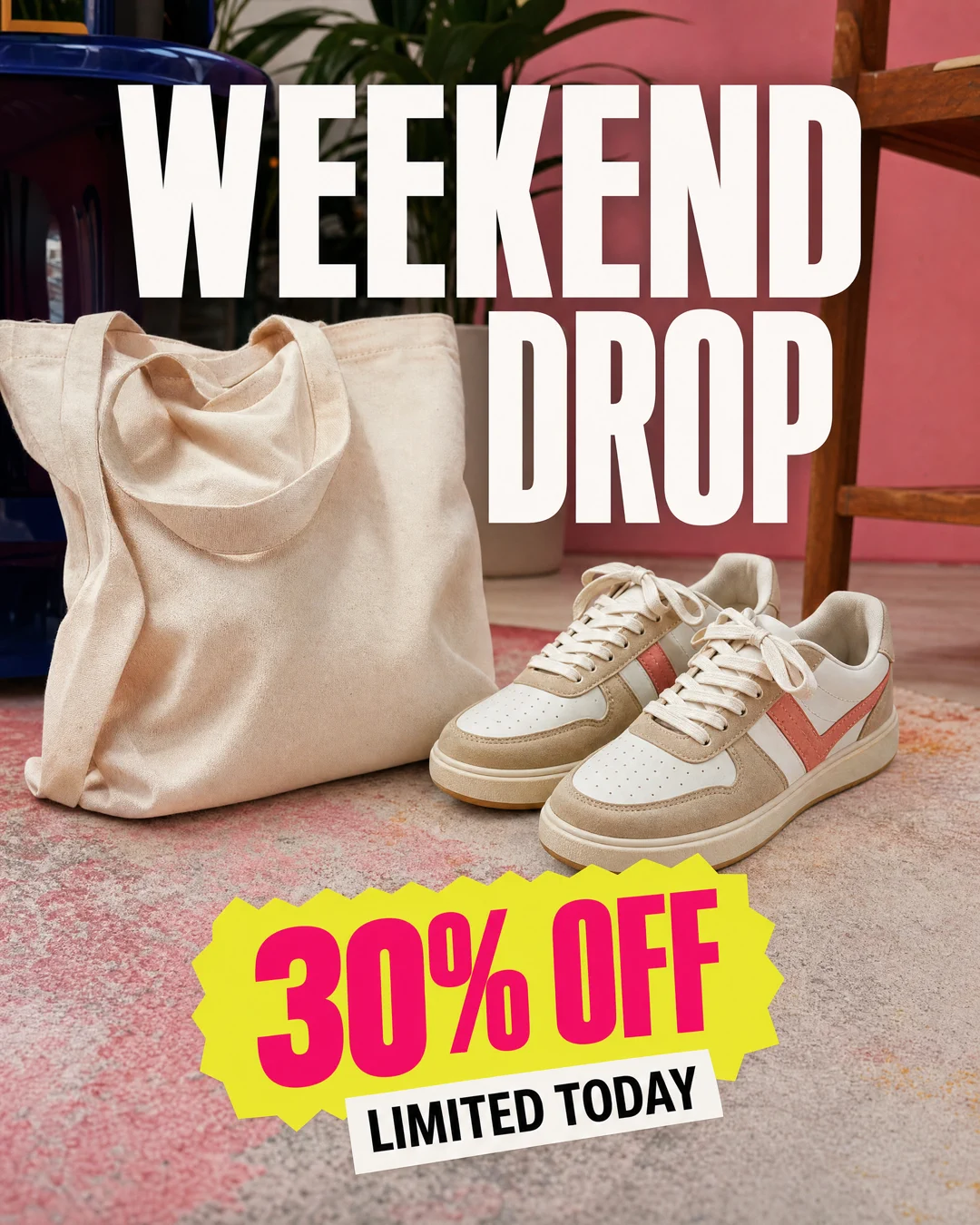
Each example starts with visible text, then uses GPT Image 2 cleanup to remove it and preserve the surrounding image.
Product text cleanup
Remove promotional text from a product image while keeping the bottle, shadows, and studio lighting intact.
Social post caption removal
Clean bold sale text, stickers, and captions from a social post so the original photo can be reused.

Poster and flyer text removal
Remove event lettering from a flattened poster or flyer while keeping the paper, tape, wall texture, and lighting.
Remove text from an image online without opening Photoshop or Canva
Upload one image, remove visible text online with AI, and keep the background as natural as possible.
AI text remover|Image cleanup|1 image|Captions, labels, screenshots
Upload one image, optionally tell VizRise what text to remove, and generate a clean version.
Choose the image that contains unwanted text, labels, captions, UI copy, or written marks.
Leave the note blank to auto remove visible text, or mention the exact words or area you want cleaned.
VizRise asks GPT Image 2 to remove the text and reconstruct the covered background as naturally as possible.
Use VizRise for image creation, cleanup, editing, and visual refinement from one workspace.
Built for unwanted text, captions, labels, screenshots, and flattened image overlays.
Common reasons people search for a quick remove text from image app or browser tool.
Remove sale labels, launch text, or temporary campaign copy from product visuals before reusing the image in a store, ad, or landing page.
Clean captions, meme text, or baked-in overlay copy from images you own before adapting them into new posts, thumbnails, or videos.
Remove visible interface text, placeholder labels, or private words from screenshots used in documentation, pitches, and product demos.
Clean old wording from a non-layered design draft so the image can be reused without rebuilding the whole visual from scratch.
Clean images you own, drafts you created, or assets you are allowed to edit.
This tool is built for cleaning images you own or are allowed to edit. It is not meant for removing rights marks, ownership notices, or other protected information from someone else's work.
Quick answers about background preservation, free credits, app alternatives, selected text cleanup, and responsible use.
Upload the image and leave the note blank for automatic cleanup. VizRise sends a prompt that asks GPT Image 2 to remove the visible text and reconstruct the covered background instead of leaving an empty patch.
New users can try the tool with 3 free credits. After those credits are used, image cleanup uses your VizRise credit balance.
Yes. Add a short note such as 'remove the top headline only' or 'remove the price tag but keep the product name' so the model knows which text to target.
It can help with handwritten text when the writing and background are clear. Dense handwriting, textured paper, or overlapping objects may require another generation or a more specific note.
Yes. The tool can clean screenshots, app mockups, and UI captures. Avoid uploading sensitive information unless you are comfortable processing that image through the service.
For quick AI cleanup, yes. It is simpler than manual clone-stamp or masking workflows. For detailed layer editing, layout design, or pixel-perfect retouching, a full editor may still be better.
This page focuses on removing existing visible text. If you want to replace copy, clean the old text first, download the result, then add new text in your design workflow.
Only use it on images you own or have permission to edit. Do not use the tool to remove ownership marks, rights notices, or protected branding from someone else's content.
No. VizRise runs in your browser, so you can upload an image, clean text online, and download or reuse the generated result without installing a separate app.
AI cleanup can introduce small differences, especially around complex textures, faces, hands, patterned backgrounds, or tiny text. If the first result is not clean enough, try a more specific note or generate again.
Upload one image, remove visible text online with AI, and keep the background as natural as possible.