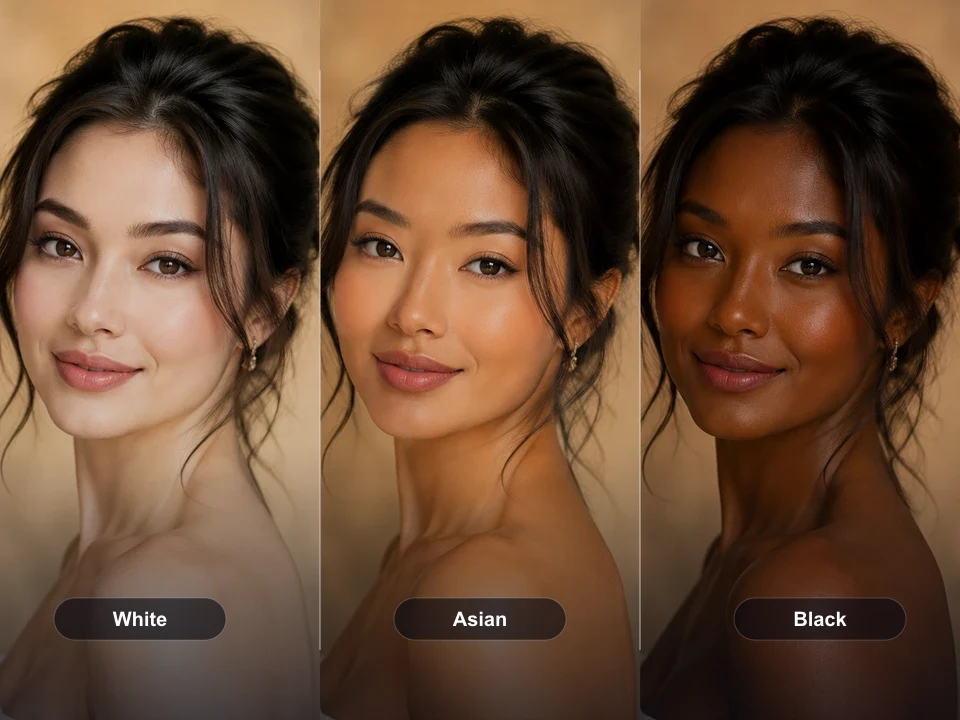
Same portrait skin tone variants
Preview White, Asian, and Black skin tone directions on the same fictional portrait so users understand exactly what the Type presets do.
Upload at least 1 image to continue.
The Type buttons give users an easy starting point. They can generate directly or add a short note for more control.
Examples show White, Asian, and Black skin tone directions across different fictional portraits.
Same portrait skin tone variants
Preview White, Asian, and Black skin tone directions on the same fictional portrait so users understand exactly what the Type presets do.
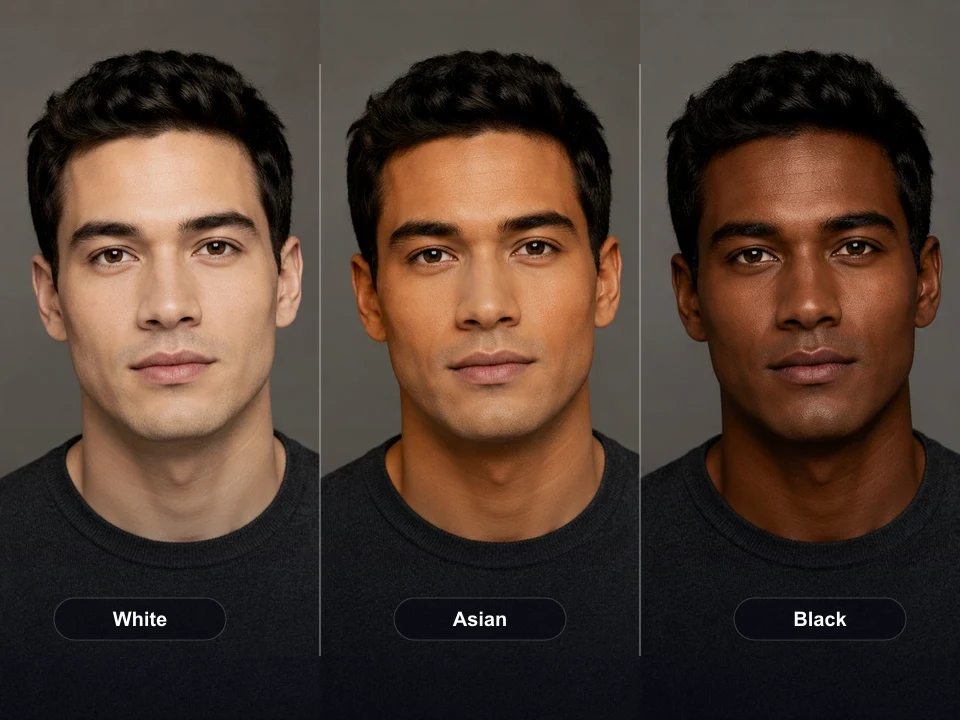
Studio portrait skin tone variants
Compare White, Asian, and Black presets on the same fictional male studio portrait with consistent lighting and identity.
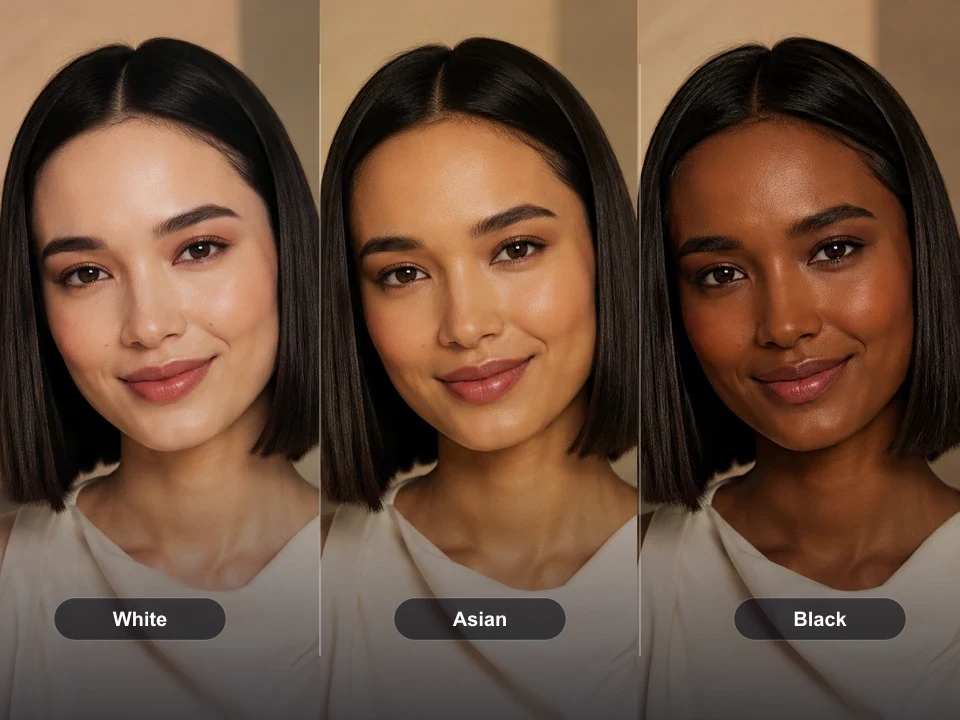
Editorial portrait skin tone variants
Show the same fictional editorial portrait across fair, warm golden, and deep brown skin tone directions.
Upload one portrait and change skin tone online
Upload one photo, choose White, Black, or Asian, and generate a natural skin tone retouch with GPT Image 2.
AI skin color changer|Image-to-image portrait retouch|1 portrait photo|White, Black, Asian
Upload a portrait, choose a Type preset, optionally add instructions, and generate a retouched result.
Choose a clear face photo with visible skin detail. Natural light and a medium close-up usually work best.
Select White, Black, or Asian as the starting preset. Add optional instructions if you want less redness, a warmer tone, or a softer result.
GPT Image 2 adjusts the skin tone while preserving the same person, facial structure, clothing, background, and natural texture.
Use VizRise for portrait retouching, image generation, cleanup, reference blending, and photo-to-art workflows.
Built for Type presets, natural skin texture, identity preservation, and quick portrait color correction.
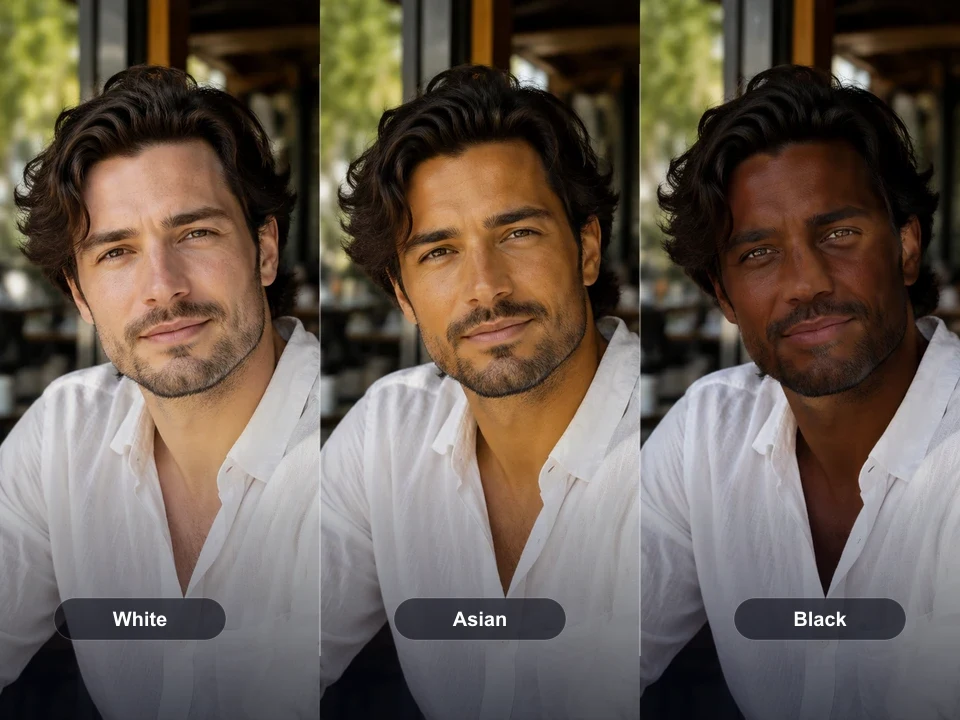
Use skin tone changes for beauty previews, profile photos, color correction, fictional characters, and concept references.
Create quick skin tone variations before choosing a final portrait direction for social, profile, or creator images.
Fix skin color affected by bathroom mirrors, harsh studio lights, camera white balance, or mixed indoor and outdoor lighting.
Warm up washed-out skin tone in outdoor lifestyle photos while keeping natural shadows and highlights.
Explore skin tone directions for fictional characters, avatars, beauty concepts, and campaign mood boards.
Balance skin tone for profile pictures, creator portraits, dating photos, and personal brand images.
Create simple retouch examples that show how skin tone correction changes a portrait without rebuilding the whole scene.
Keep edits realistic, non-deceptive, and appropriate for portrait retouching or fictional concept work.
Use this tool for portrait retouching, color correction, and fictional character work. Avoid using it to misrepresent real people, mock protected traits, or make deceptive identity claims.
Answers about Type presets, changing skin tone online, free credits, photo quality, and identity preservation.
An AI skin color changer adjusts the visible skin tone in a photo while trying to preserve the same person, pose, lighting, background, and skin texture.
Yes. The tool includes White, Black, and Asian Type presets. You can generate directly from a preset or add optional instructions for warmer, softer, darker, lighter, or more even results.
The prompt is designed to preserve identity, face shape, expression, hair, clothing, and background. Like any image-to-image model, results can vary, so generate again if the face changes too much.
Yes. Add a note like 'reduce redness but keep natural texture' or 'even out patchy tone and preserve freckles'.
You can view the page without logging in. New users can try the tool with 3 free credits. After those credits are used, generation uses your normal VizRise credit balance.
Yes, for skin tone and color balance. If you want heavy makeup generation, use optional instructions carefully so the face stays recognizable.
Use a clear portrait with visible face detail and decent lighting. Heavy blur, tiny faces, extreme shadows, or sunglasses can reduce quality.
No. VizRise runs in your browser. Upload a photo, choose a Type preset, generate the result, and save it from your image history.
Upload one photo, choose White, Black, or Asian, and generate a natural skin tone retouch with GPT Image 2.